Check eligibility and find existing listings
Search Maps for your business before creating a profile. Claim an existing eligible listing through the ownership request if someone else manages it. Use the real customer-facing name and the category that describes your main activity. A service-area business should review whether its address should be visible.
1. Check your business type and find the right listing
A Google Business Profile gives eligible businesses a way to manage how their details appear on Google Search and Maps. Customers can check hours, find directions, call the business or follow a website or booking link. Eligibility generally requires in-person contact with customers during stated hours. A flower shop with a staffed storefront and a plumber who visits customer properties can both qualify. An online-only business without in-person service does not ordinarily qualify. A mailing address, PO box or rented virtual office is insufficient on its own.
Sign in with a business-controlled Google account. Search Maps for your exact name and city, then confirm the address and phone number. If the business already has an unverified listing, use the claim option. If another owner manages the verified listing, follow Google’s ownership request process. If the business is eligible and no listing exists, use business.google.com/add. Use the real-world business name and choose the most specific primary category that reflects the main activity. A service-area business that does not receive customers at its base should hide that address and enter its actual service areas.
- Find the listingSearch Maps and claim the existing record if available
- Prove the businessProvide the evidence for the method Google offers
- Check the customer viewTest directions, calls and opening hours
Illustrated interface walkthrough with example data. Labels and available options may vary by account.
- Find your listing
- Maps search
- Example Bakery · your city
- Match
- Check name, location and contact details
Claim an eligible unverified listing if it already exists. Request ownership if another account manages it.
- Add your business
- Business name
- Example Bakery
- Primary category
- Bakery
- Business type
- Customers visit our storefront
Use the real public name and the most specific available category that reflects the main business.
Complete and verify the profile
Add regular and special hours, the correct website, and customer-facing phone and service details. Upload current storefront, team or product photos where useful. Follow the verification method offered in your account and use the evidence it asks for, such as signage and proof you operate the business.
2. Complete the profile and prepare evidence for verification
Use the phone and website the business actually controls. Add normal hours, contact details, services, and special hours as available. Include an accurate description and choose additional categories only for work the business genuinely does. For a storefront, visitors should be able to recognise the entrance, signage and address. For a service-area business, keep the public service territory accurate and distinguish where the business operates from where it accepts walk-ins.
Open the profile while signed in and follow the verification choices Google displays. Possible methods include recorded video, live video, phone or text, email, and mail where offered. Google determines what is available and may require more than one method. For a recorded video, plan one unedited, continuous take of at least 30 seconds and record it in the mobile verification flow. Show the location and signs for a storefront, or nearby landmarks and work equipment for a service-area business. Include evidence that you manage the operation, such as unlocking a staff-only area or accessing branded work equipment. Keep faces and sensitive information out of the video. For mail or a code-based method, keep codes private and follow the account’s instructions before making changes to key details.
Illustrated interface walkthrough with example data. Labels and available options may vary by account.
- Business details
- Location
- Use the real staffed storefront or hide a non-customer base
- Contact
- Business phone and live website
- Hours
- Customer-facing hours
If customers do not come to the address, use the service-area settings rather than publishing your base.
- Get verified
- Example option
- Business video
- Evidence
- Location, equipment or signage, and management access
Use the real options offered to your account. For recorded video, plan one continuous take and exclude personal or sensitive information.
Keep the information useful
Update holiday hours and test the link from mobile. If the profile is suspended, fix the underlying guideline issue and gather matching evidence before appealing. Ask customers for honest reviews without incentives. Separate calls, website visits and bookings when assessing results.
3. Review the live listing and resolve verification issues
If a video is rejected, open the notice, match each concern to the evidence requested, and record a replacement in the profile flow. If you are asked to verify again after a change, check that the new details are accurate before proceeding. If the profile is restricted, review the policy reason, correct the issue and gather evidence that matches the business name and details before appealing through Google. Avoid creating a duplicate to work around a restriction or ownership dispute.
Once verified, find the public profile on Search and Maps in a signed-out browser. Test the directions, phone, appointment and website links from a phone. Upload current images that show what customers will see or buy. Ask real customers for honest reviews without incentives and respond without revealing personal details. Keep special hours current. Use available Performance data to track actions such as calls or clicks, and compare the profile’s website traffic with identifiable website enquiries before drawing conclusions.
Illustrated interface walkthrough with example data. Labels and available options may vary by account.
- Business Profile on Search
- Owner view
- Edit profile · Photos · Performance
- Public checks
- Directions, call and website
Check the details in a signed-out browser and use a phone to try actions a customer would take.
- Verification follow-up
- Example notice
- Review issues
- Next step
- Read what evidence Google requests
If the listing is restricted, use the official appeals process for the existing profile.
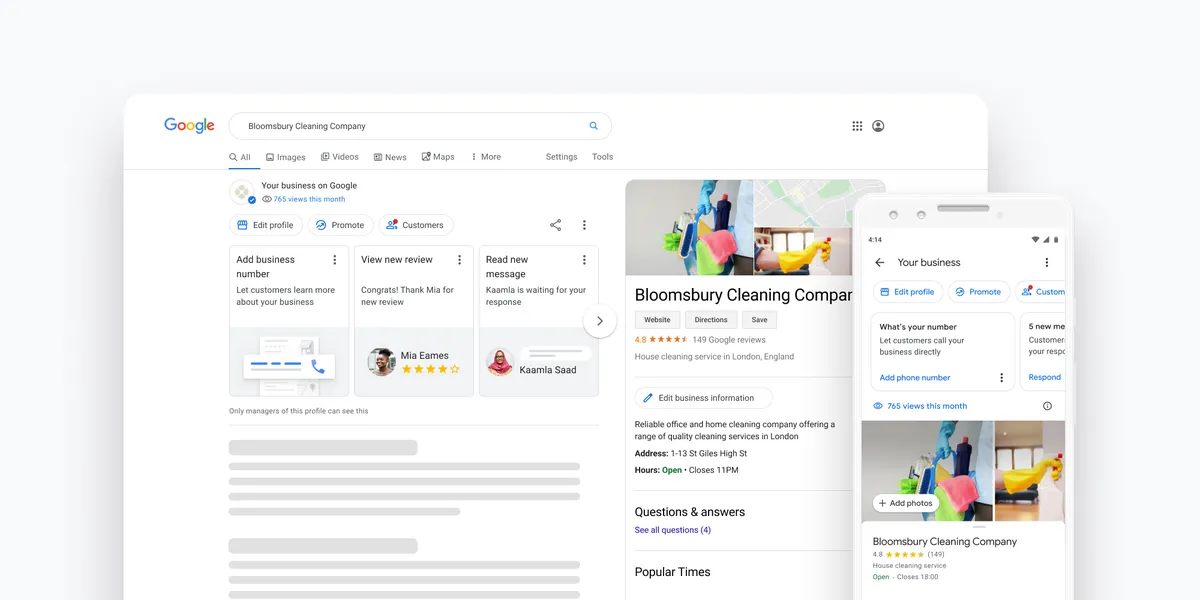
Google’s 2020 Search and Maps screenshots show where owners can manage business information. Google’s original Business Profile announcement.
How three local businesses handle verification
A bakery shows the street sign, storefront sign, and access to the till. A plumber who drives to clients hides the home-base address from the public profile and prepares evidence of work equipment and control of the business. A repair shop that also makes house calls uses its public storefront if it is staffed and customer-facing, then adds the genuine service area. Each case provides evidence of where the business operates and who is authorised to manage it.
After a manager leaves, transfer access using the profile’s people and access controls. Retain a business-controlled primary owner, grant managers the access they need and remove former providers once the transition is complete. Verify the public details after every change that could affect where and when customers can reach you.
| Business type | Public address | Evidence to prepare |
|---|---|---|
| Staffed storefront | Show the address if customers visit during business hours | Permanent signage, surrounding location and access to a restricted area |
| Service-area business | Hide the base address if customers do not visit there | Local landmarks, tools or work vehicle and proof you manage the business |
| Hybrid | Show an eligible storefront and add actual service areas | Customer entrance and evidence of the services delivered off-site |
| Online-only operation | Generally ineligible without qualifying in-person customer contact | Use your public website and other appropriate discovery channels |
Common questions
Is a Google Business Profile free?
Yes. Creating, claiming and managing an eligible profile does not require an advertising subscription. You can link it to your website without running Google Ads.
Can I choose a different verification method?
Use one of the options Google displays for your profile. If an offered method fails, follow the help flow or contact support when the profile does not present a practical option.
Why can someone else see the profile while I cannot edit it?
A public listing can exist before you obtain management access. Check that you are signed into the right account and request ownership if an existing verified owner manages it.
Is verification enough to rank for every nearby search?
Verification gives the business control over its listing details. Google says local visibility depends mainly on relevance, distance and prominence. Maintain accurate details, build an informative website and collect honest feedback.
Can I publish a registered business address where nobody serves customers?
Use Google’s eligibility and address guidelines. A mailing address alone does not establish a staffed location. If your team visits customers and people do not visit your address, set up an eligible service-area profile and hide the address.
What to check next
- Existing listingClaim or request access to the right profile
- Business detailsPhone, hours and URL match the website
- VerificationFollow the evidence requested for this profile
Further reading and official documentation
- Google Business Profile: add or claim a listing
- Google’s eligibility and address guidelines
- Google’s Business Profile verification methods
- Google’s video verification instructions
- Google’s profile restriction and appeals process
- Google’s local ranking guidance
- Google’s guide to editing a profile
- Google Business Profile: request ownership
- Google Business Profile: manage service areas
- Google Business Profile: understand performance
- Google’s Search and Maps profile interface examples
Need help checking an existing listing or preparing for verification? Tell us your business type and the issue shown in your profile. Contact Orbilect SEO.